Claude Code
Claude Code is an agentic coding tool that lives in your terminal, understands your codebase, and helps you code faster by executing routine tasks, explaining complex code, and handling git workflows — all through natural language commands.
Claude Code is even more powerful with the GLM Coding Plan — giving you 3× the usage at a fraction of the cost. Code faster, debug smarter, and manage workflows seamlessly with more tokens, and rock-solid reliability.
Step 1: Installing the Claude Code
Note: If MacOS users encounter permission issues during installation, please use nvm to install Nodejs.
Step 2: Config GLM Coding Plan
Step 3: Start with Claude Code
Once the configuration is complete, you can start using Claude Code in your terminal or cmd:
If prompted with “Do you want to use this API key,” select “Yes.”
After launching, grant Claude Code permission to access files in your folder as shown below: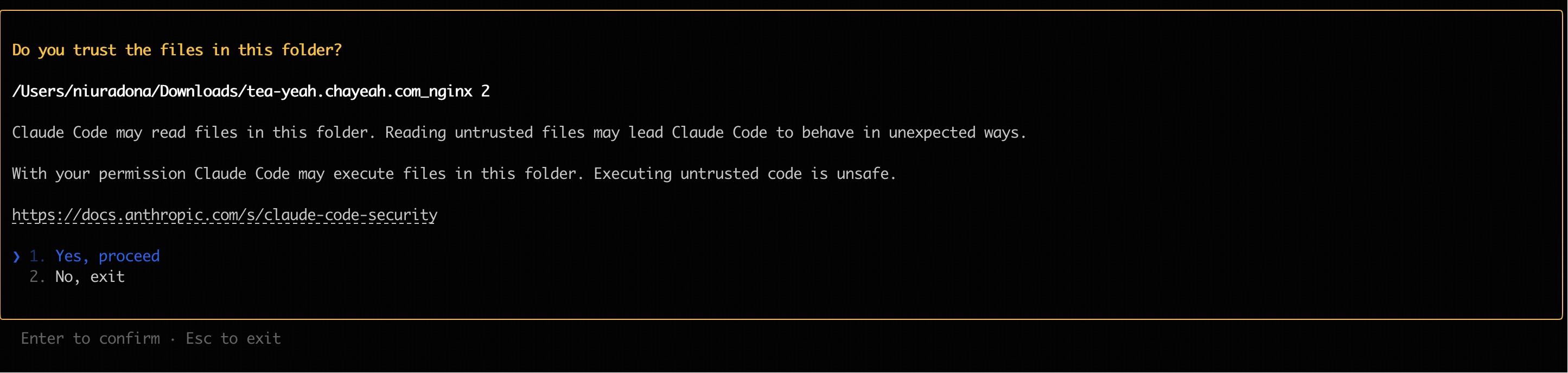
Description
You can use Claude Code for development Now!
FAQ
How to Switch the Model in Use
Mapping between Claude Code internal model environment variables and GLM models, with the default configuration as follows:
- ANTHROPIC_DEFAULT_OPUS_MODEL: GLM-4.7
- ANTHROPIC_DEFAULT_SONNET_MODEL: GLM-4.7
- ANTHROPIC_DEFAULT_HAIKU_MODEL: GLM-4.5-Air
Note: Max users using GLM-5 need to manually change the model to “glm-5” in the custom configuration (e.g., ~/.claude/settings.json in Claude Code).
If adjustments are needed, you can directly modify the configuration file (for example, ~/.claude/settings.json in Claude Code) to switch to other models.
If you want to use the latest default mappings (for existing users who have configured old model mappings), simply delete the model mapping configuration in settings.json, and Claude Code will automatically use the latest default models.
- Configure
~/.claude/settings.jsonwith the following content:
Note: Max users using GLM-5 need to manually change the model to “glm-5” in the custom configuration (e.g., ~/.claude/settings.json in Claude Code).
- Open a new terminal window and run
claudeto start Claude Code, enter/statusto check the current model status.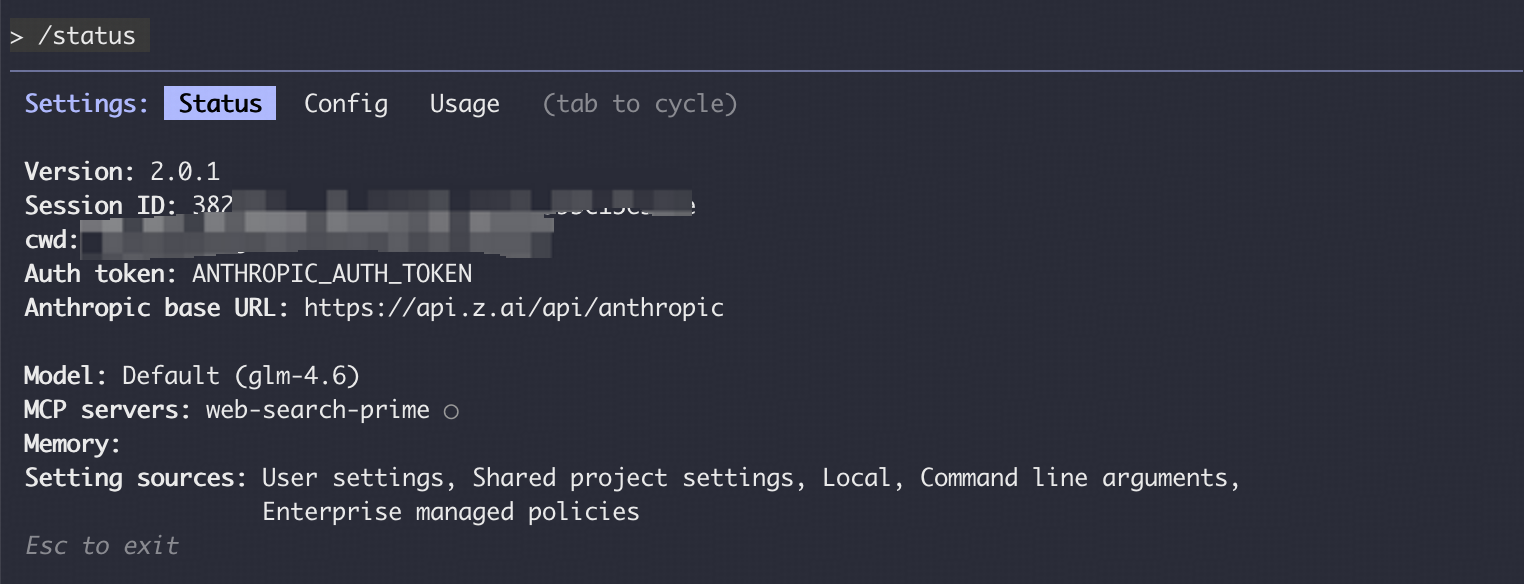
Description
Refer to the Vision MCP Server, Search MCP Server and Web Reader MCP Server documentation; once configured, you can use them in Claude Code.
Manual Configuration Not Work
If you manually modified the ~/.claude/settings.json configuration file but found the changes did not take effect, refer to the following troubleshooting steps.
- Close all Claude Code windows, open a new command-line window, and run claude again to start.
- If the issue persists, try deleting the ~/.claude/settings.json file and then reconfigure the environment variables; Claude Code will automatically generate a new configuration file.
- Confirm that the JSON format of the configuration file is correct, check the variable names, and ensure there are no missing or extra commas; you can use an online JSON validator tool to check.
We recommend using the latest version of Claude Code. You can check the current version and upgrade with the following commands:
We have verified compatibility with Claude Code 2.0.14 and other versions.